You write to a hiring manager. You mention the role they posted last week, the candidate you think fits, and the fact you met at an event in the spring. It took you ten minutes. It’s about as personal as email gets.
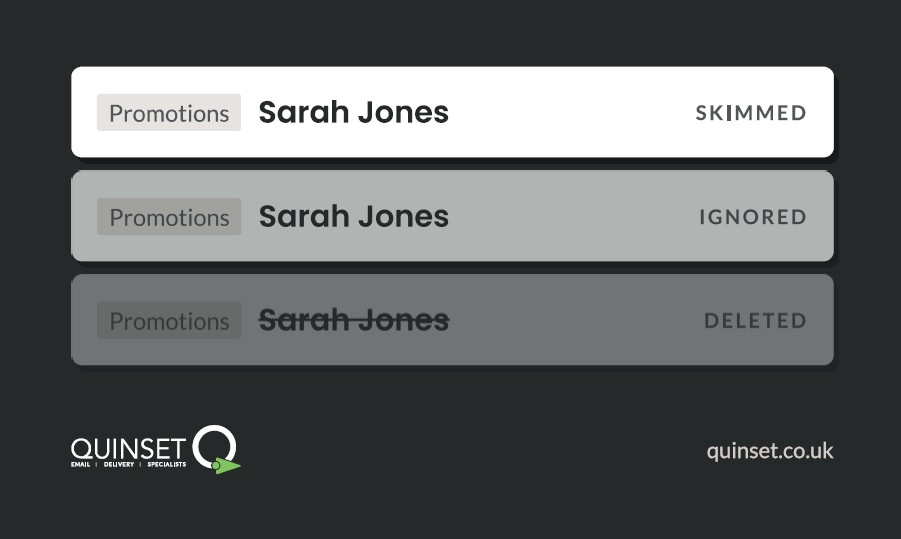
It lands in their Outlook with a small label in front of your name: Promotions.
To them, you’re now in the same pile as the webinar invites and the software newsletters. They’ve made that call before reading a word.
This is a real change Microsoft made this year, and most recruiters haven’t noticed it yet. Here’s what it is, why it bites recruitment outreach in particular, and what you can check.
What Microsoft has changed
Outlook now labels mail it thinks is marketing. The change is documented in Microsoft 365 Message Center post MC1279093, and it sits under Microsoft Defender for Office 365, the security layer that filters mail for most business tenants.
In plain English:
- The label is “Promotions”. During the preview it was called “Bulk”. That old name tells you where it comes from: Microsoft’s bulk mail detection.
- It can move your email. If the recipient’s IT admin switches on a setting called “Bulk moves enabled”, tagged mail goes straight into a new Promotions folder. If they don’t, it stays in the inbox, wearing the label.
- It learns. When people drag mail in or out of the Promotions folder, the system takes note. Users can also build inbox rules around the tag.
- It’s rolling out by app. Outlook on the web and Outlook for Windows got it first. iOS, Android and classic Outlook follow later.
- It’s live. General availability rolled out worldwide from late July to late August 2026. If your prospects are on Microsoft 365, assume they can see it.
Bulk complaint level (BCL) in one sentence: a score from 0 to 9 that Microsoft gives a message, estimating how likely it is to be unwanted bulk mail. The higher the number, the more it looks like marketing that people complain about.
Focused Inbox vs the Promotions tag
Outlook has sorted mail for years with Focused Inbox. Important-looking mail went to “Focused”. Newsletters and bulk went to “Other”.
Plenty of people hated it. They missed things in Other, so they switched Focused off and went back to one long list. In that list, a recruiter’s email sat next to a client’s email and looked just the same.
The Promotions tag doesn’t care about that setting. It shows whether Focused Inbox is on or off. So the people who turned Focused off to see everything now see everything, with a label telling them which emails are marketing.
Reality Check: “Most of our contacts turned Focused Inbox off, so we’re fine.” Not any more. Focused used to hide marketing-looking mail. The tag now labels it in plain sight, which is arguably worse, because the reader sees you and judges you in the same glance.
Why this hurts recruitment outreach in particular
Recruitment email lives or dies on the first glance.
A hiring manager opens Outlook to a hundred-odd unread messages. They’re triaging, not reading. A Promotions label is permission to skip. It says “this can wait”, and in a busy inbox “can wait” usually means “never”.
Candidates are worse. A passive candidate already suspects recruiter emails are sent in bulk. A label in front of yours confirms it before they’ve seen your first line.
The damage is quiet, too. Nothing bounces. Nothing lands in junk. Your reply rate just drifts down, and the obvious suspects get the blame: the subject line, the send time, the copy. Meanwhile the real problem is a label you’ve never seen, because you never see your email the way the recipient does.
And if their admin has switched on bulk moves, you’re not even in the inbox. You’re in a folder most people check about as often as they clean the office fridge.
Why it matters: recruitment outreach only works if it reads as one person writing to another. The Promotions tag tells the reader the opposite, before they’ve opened it.
What likely pushes an email into Promotions
Microsoft doesn’t publish the exact signals. What it does say is that the label is tied to its bulk detection and BCL scoring. So the honest answer is: we don’t know the precise recipe, but we can see what tagged mail tends to have in common.
Based on what we’re seeing, these are the likely contributors:
- How it’s sent. Mail that leaves through shared sending infrastructure, alongside lots of other senders’ campaigns, looks more like bulk than mail sent from your own mailbox.
- Volume and pattern. The same template going to hundreds of people in a tight window is the textbook shape of a campaign.
- Tracking. Links wrapped in tracking redirects and an invisible open-tracking pixel are marketing habits. Filters know that.
- Unsubscribe footers. A formatted footer with an unsubscribe link, plus a List-Unsubscribe header, is exactly what newsletters carry.
- Heavy HTML. Banners, image-based signatures and layout tables make a one-to-one note look like a mailer.
- Sender reputation. If your domain has a history of complaints, bounces or low engagement, the benefit of the doubt runs out sooner.
None of these are confirmed criteria. Treat them as a checklist of suspects, not a rulebook.
What recruiters can check
You can’t see Microsoft’s scoring, but you can control most of what feeds it.
- Find out how your tools actually send. Some sequencing setups send through your own Microsoft 365 or Google mailbox. Others send through the provider’s shared infrastructure. Send yourself a test, open the message headers and look at the DKIM signature. If the d= domain isn’t yours, your mail is travelling on someone else’s name.
- Strip the template back. Turn off open tracking on first-touch emails. Keep to one link, ideally unwrapped. Swap the image-heavy signature for plain text. If it looks like something you’d type in Outlook yourself, you’re on the right track.
- Keep the opt-out, lose the newsletter footer. You still need a clear way for people to say no. A plain line such as “If this isn’t relevant, just reply and I won’t get in touch again” reads like a person. A formatted unsubscribe block reads like a mailing list.
- Get authentication right. SPF lists who can send for your domain. DKIM is a digital wax seal proving the email wasn’t tampered with. DMARC tells receivers what to do when those checks fail, and only passes when they line up with the domain in your From address. All three should align with your own domain.
- Slow down. Spread sends across the day. Cap volume per mailbox. Don’t fire the same template at your whole database on Monday at 9am.
- Look after your reputation. Clean out stale contacts and role addresses like info@ before you sequence them. Bounces and complaints follow you around.
Inbox Test: Send step one of a live sequence, from your sequencing tool, to a Microsoft 365 mailbox you control. Open it in Outlook on the web. Is there a Promotions label? Then view the message source and find the X-Microsoft-Antispam header. The BCL value in there is Microsoft’s bulk score for that email.
If you only do one thing today: run that test. Most recruiters have never seen their own outreach from the recipient’s side.
A note on compliance (UK): cold B2B outreach can be lawful under PECR and UK GDPR, relying on legitimate interest, genuine relevance to the recipient’s role and a clear opt-out. Sole traders and some partnerships are treated more like individuals, so take more care there. Simplifying your footer is fine. Removing the opt-out isn’t. This isn’t legal advice; the ICO’s guidance is the place to start, and a qualified practitioner for anything specific.
Reaching the inbox isn’t the finish line any more
For years, deliverability had two outcomes. Inbox or junk.
There’s now a third: inbox, but labelled as marketing. Your email arrived. Every technical box was ticked. And it still got read as a mailshot, because of how it was sent and what it carried.
That’s the bigger shift. Deliverability isn’t just about getting there. It’s about how you’re presented once you arrive.
Want to know how your outreach is landing in Outlook? We’ll test your sequences against Microsoft 365 mailboxes, check whether they’re being tagged as Promotions, and walk you through why. Book a 30 minute call. No prep needed.
FAQs
What is the Outlook Promotions tag? It’s a label Outlook adds to email that Microsoft’s filtering identifies as promotional. It appears next to the sender in the message list. It was called “Bulk” during the preview.
Does a Promotions tag mean my email went to junk? No. The email is delivered. It either stays in the inbox with the label, or moves to a Promotions folder if the recipient’s admin has enabled bulk moves.
I write every email myself. Why would it be tagged? The label is driven by how mail is sent and what it contains, not who typed it. Shared sending infrastructure, tracking links, unsubscribe footers and heavy HTML can all make a personal email look like a campaign.
If my prospects have Focused Inbox turned off, will they still see the tag? Yes. The Promotions tag shows whether Focused Inbox is on or off.
How do I know if my recruitment emails are being tagged? Send a real sequence email to a Microsoft 365 mailbox you control and open it in Outlook on the web. Check for the label, then look for the BCL value in the message headers.