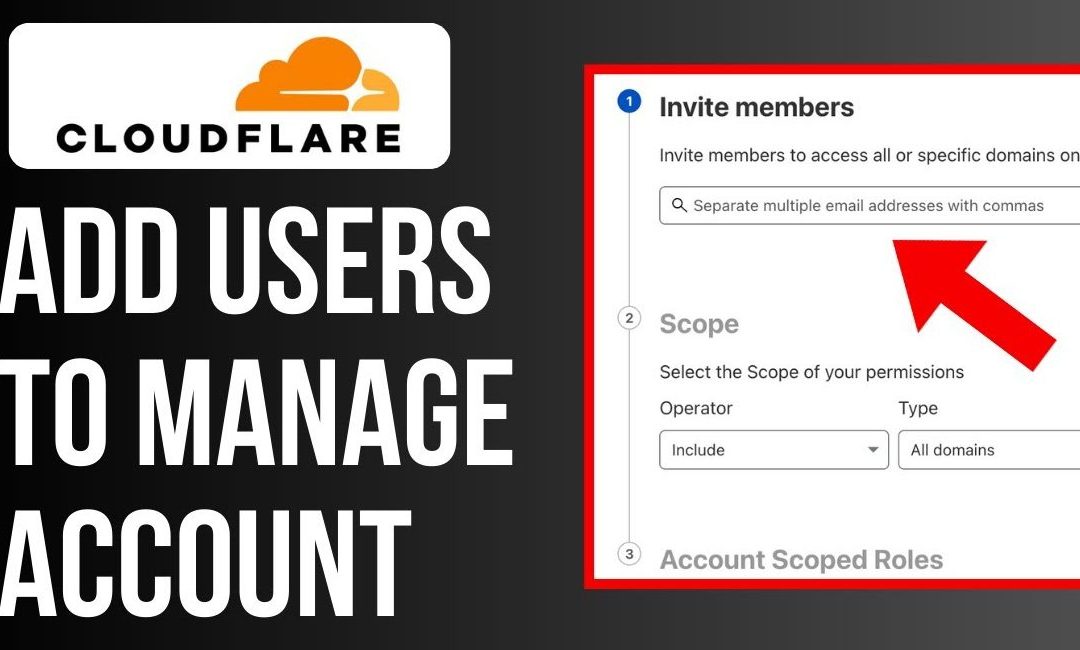
Sometimes you want me (or someone else) to help manage your DNS, but you don’t want to hand over your email + password or full control. The good news? Cloudflare lets you invite collaborators with fine‑tuned permissions. Here’s how.
Prerequisite: You must be a Super Administrator on your Cloudflare account (with verified email) to manage account members.
Invite Me to Your Cloudflare Account
Here’s the guided walkthrough. (Feel free to forward these steps to anyone who needs them.)
| Step | What to Click / Do | Notes / Tips |
|---|---|---|
| 1 | Log in to your Cloudflare dashboard | Use your usual account. Go to dash.cloudflare.com |
| 2 | Open Members section | Click here to jump straight to the Members section. |
| 3 | Click Invite | This opens a form to add new account members. |
| 4 | Enter the email address I’ll use | If you want to invite more than one, you can separate multiple emails with commas. |
| 5 | Configure Scope | This is where you decide which parts of your Cloudflare account I will have access to. All domains or specific domains. |
| 6 | Choose Role(s) | All I really need is DNS, so tick that box |
| 7 | Click Continue → Summary | You’ll see a summary of email, scope, roles. |
| 8 | Click Invite | This sends an invitation email to me (or whoever). |
| 9 | I accept the invite | Once I click the link in the email, I’ll have access (within the permissions you assigned). |
How to Edit or Revoke Access
- Log into Cloudflare → go to Members
- Find my entry in the list
- To change what I can do: click Edit → adjust scope/roles → Save/Update
- To remove access completely: click Revoke (or “Remove”) and confirm
If an invitation is pending and I didn’t get it (or lost it), you can Resend invitation.
Best Practices / Tips
(Because I Care About Security)
- Only grant the roles I need, nothing more
- Use domain-scoped roles rather than “all account” where possible
- Periodically review who has access
- As the owner, keep at least one Super Administrator account you control
- Ensure all users (including me) have two-factor authentication (2FA) enabled